author : Empty bad uncle
Blog :https://xuhss.com
The breakfast shop won't be open till night , The people who want to eat have already come !
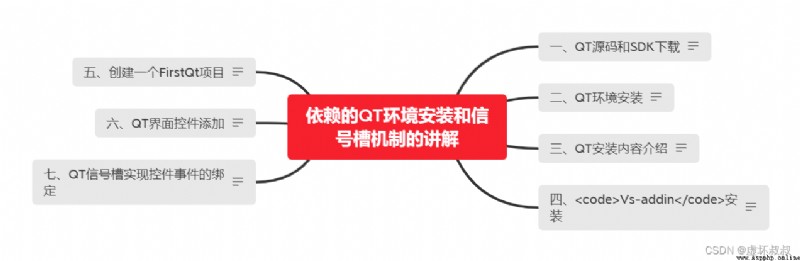
http://download.qt.io/archive unreliable
http://download.qt.io Sign up to download
QT Yes 2 Programming methods , One is based on QtCreator, The other is based on Visual Studio. If you are Linux perhaps Mac, You can use it directly QtCreator, If it's in Windows, Recommended VS.
Why not QtCreator, Compared with other development integration environments , You have used in actual development QtCreator You will find it easy to use , But relative to vs He is a younger brother . For example, the project is based on Qmake, It often fails to generate some compilers , There will be some bug, Relatively speaking vs Of bug A lot less , and vs When debugging and configuring third-party libraries , More convenient .
If you use vs Words , Need to download vs-addin:
download.qt.io/archive/vsaddin/
qt It is recommended to download 5.9, It is a long-term maintenance version :
http://download.qt.io/archive/qt
Double click installation 5.11 edition :
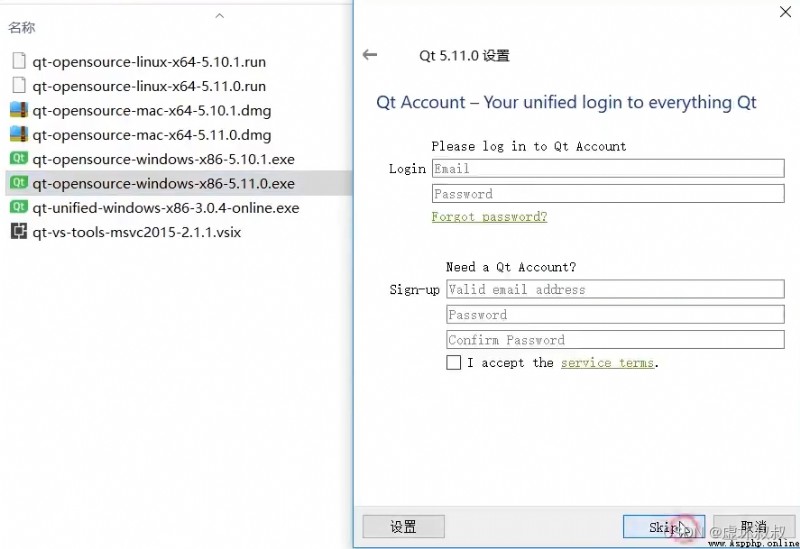
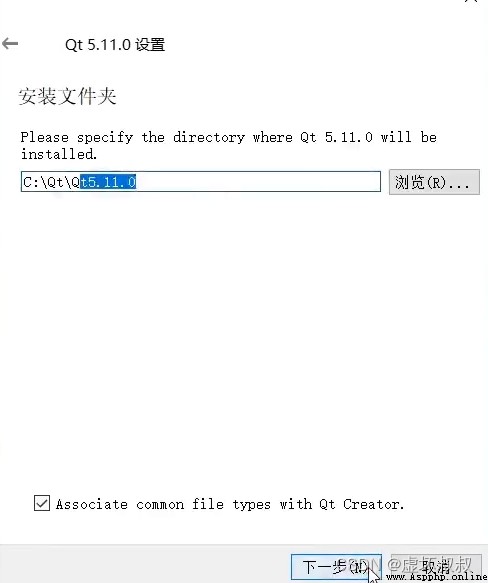
Click Next and select an installation directory :
stay vs Lower development , Check this MSVC:
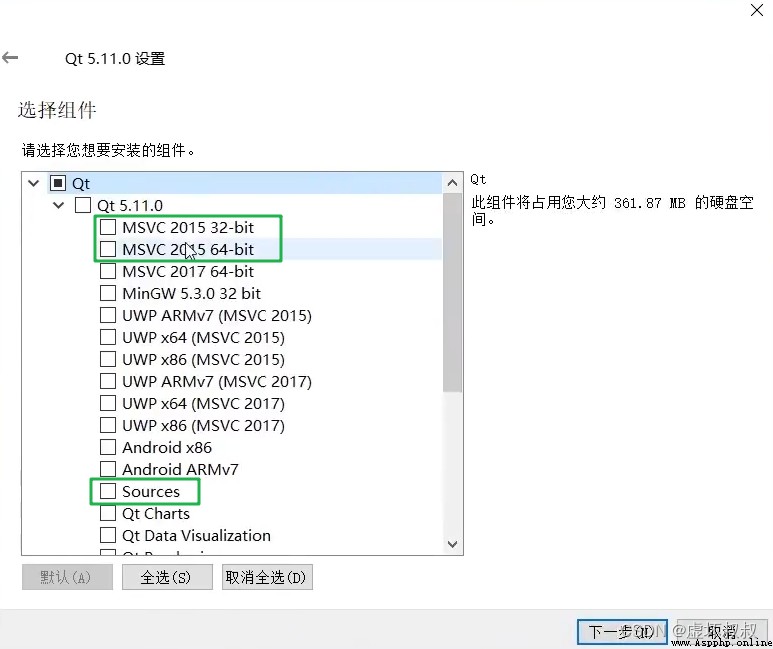
Sources You can check or uncheck , If checked, you can debug to QT Source code .
The following is the default installation . Agree to the agreement .
QT Integrated development environment QTCreator In this way :
D:\Qt\Qt5.9.8\Tools\QtCreator
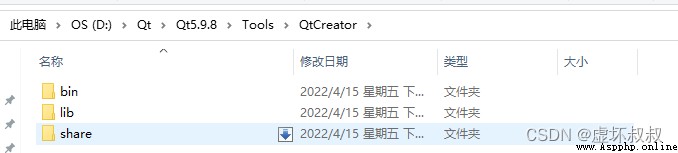
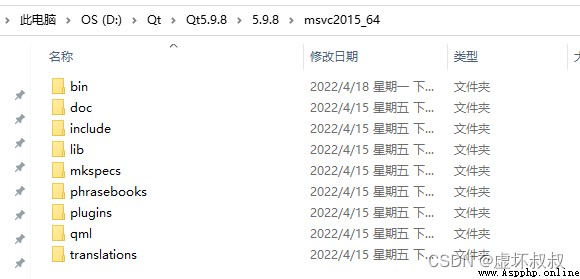
SDK The path to is at this location :
D:\Qt\Qt5.9.8\5.9.8\msvc2015_64
Vs-addin install Double click the installation directly to complete the installation , open vs2015 You can see the menu :
Click on QT Options
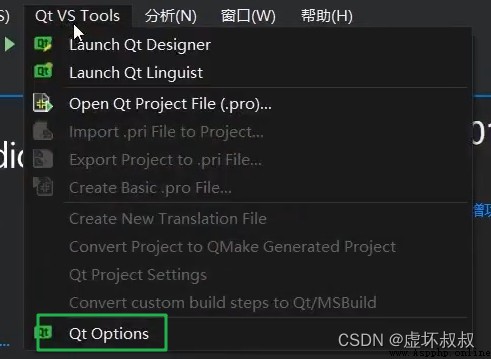
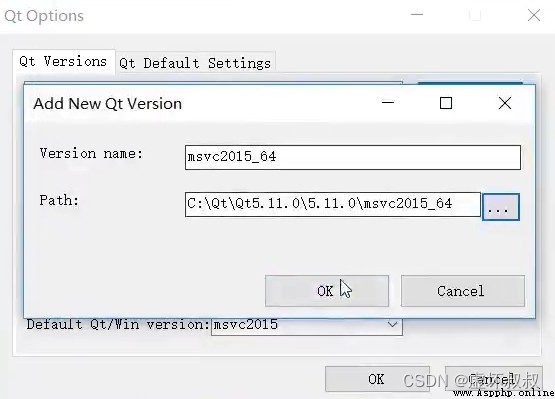
You can set :
take sdk Set to 64 position that will do :
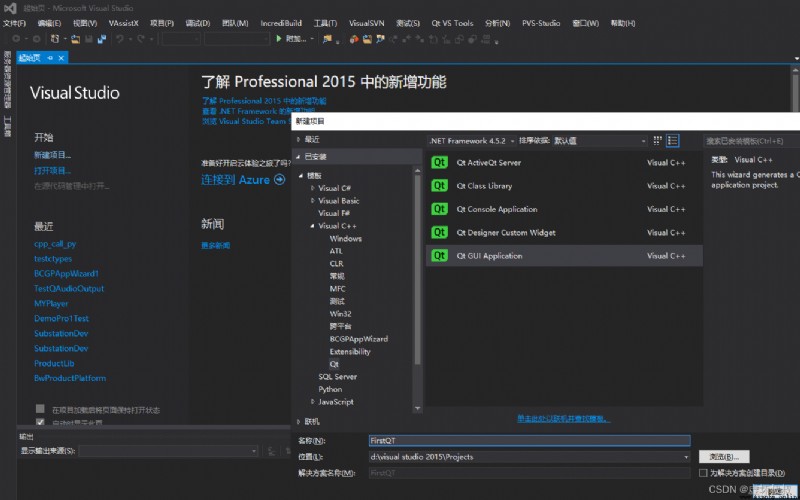
Use Qt GUI Application Create a FirstQt project
Choose what you need to use QT library , The default can be :
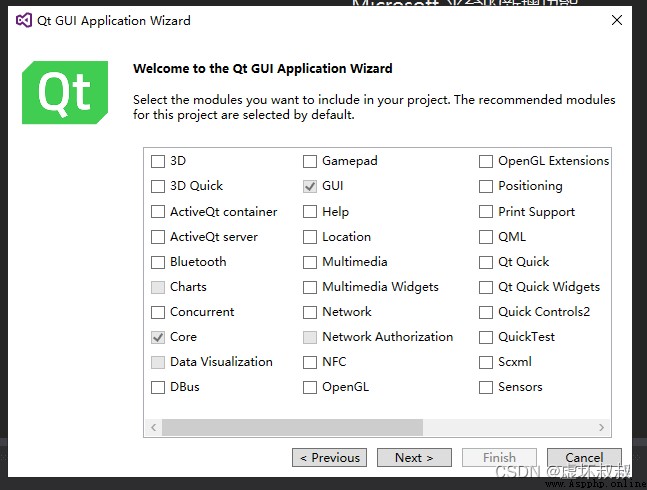
Create a main window application , The default can be
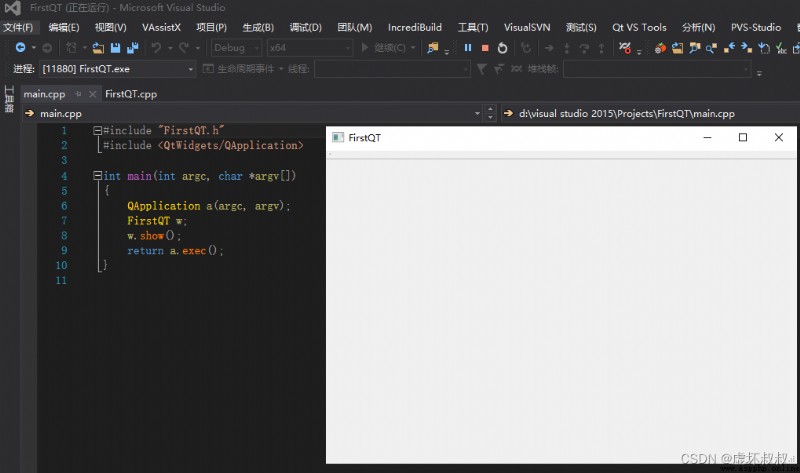
After creation , Compile operation :
You can see that a window like this has been created .
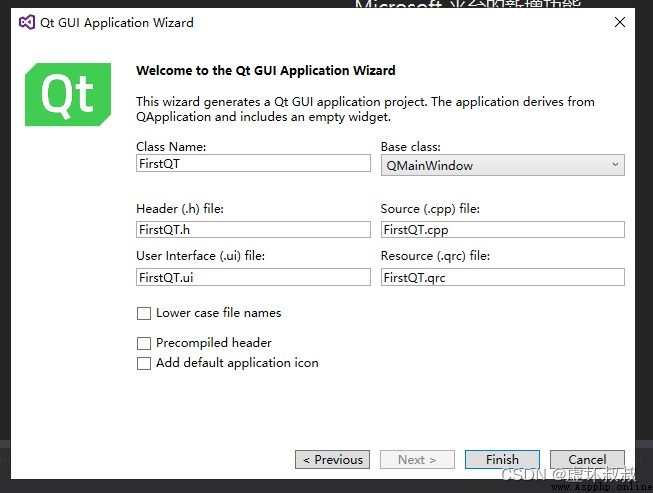
Open the main function entry :
#include "FirstQT.h"
#include <QtWidgets/QApplication>
int main(int argc, char *argv[])
{
QApplication a(argc, argv);// The whole application
FirstQT w; // window
w.show(); // Display window
return a.exec(); // Message queuing processing
}
open FirstQT.h:
#pragma once
#include <QtWidgets/QMainWindow>
#include "ui_FirstQT.h"
class FirstQT : public QMainWindow // Inherit QMainWindow main window
{
Q_OBJECT
public:
FirstQT(QWidget *parent = Q_NULLPTR);
private:
Ui::FirstQTClass ui;
};
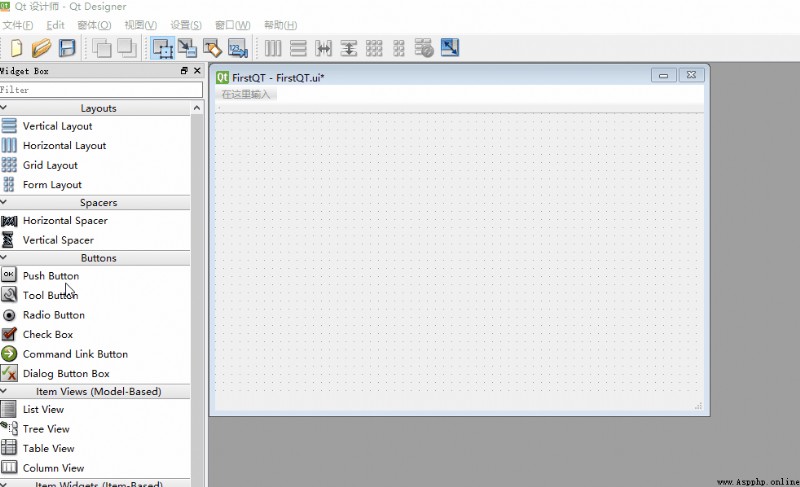
double-click FirstQT.ui You can open the interface designer .
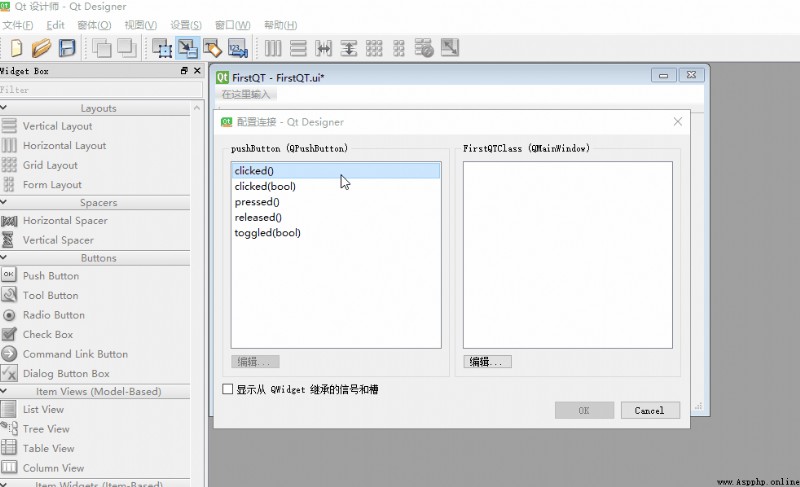
There are many controls , You can drag a button to the main window , Then use the signal slot to add events to the control :
Add... To the button click Response events :
After the save , Switch to visual studio 2015, Run the program , You can see the control .
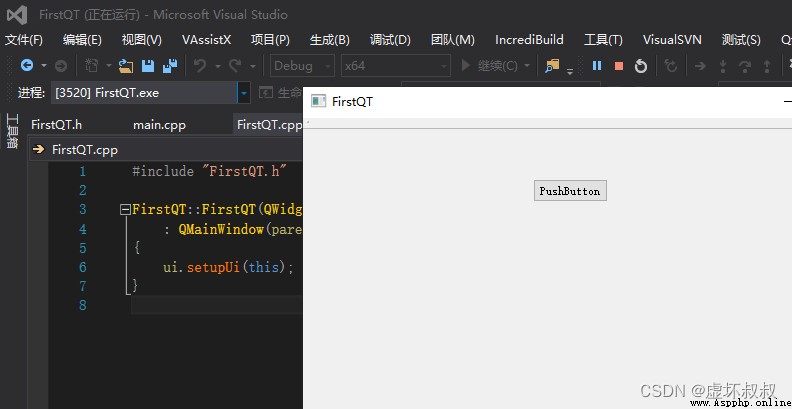
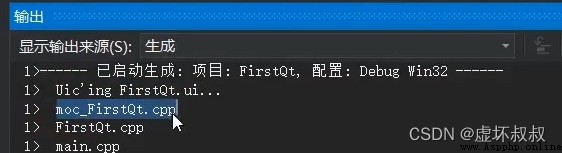
Why is it Qt The designer Modified interface , Can be shown in visual studio 2015 What about China? ?
It will be called Uic Program take FirstQt.ui Compile the generated moc_FirstQt.cpp file . This intermediate file automatically generates the interface code .
Came to FirstQt.h Add slot function to Test():
#pragma once
#include <QtWidgets/QMainWindow>
#include "ui_FirstQT.h"
class FirstQT : public QMainWindow // Inherit QMainWindow main window
{
Q_OBJECT
public:
FirstQT(QWidget *parent = Q_NULLPTR);
public slots:
void Test();
private:
Ui::FirstQTClass ui;
};
FirstQt.cpp Add implementation :
#include "FirstQT.h"
#include <iostream>
using namespace std;
FirstQT::FirstQT(QWidget *parent)
: QMainWindow(parent)
{
ui.setupUi(this);
}
void FirstQT::Test()
{
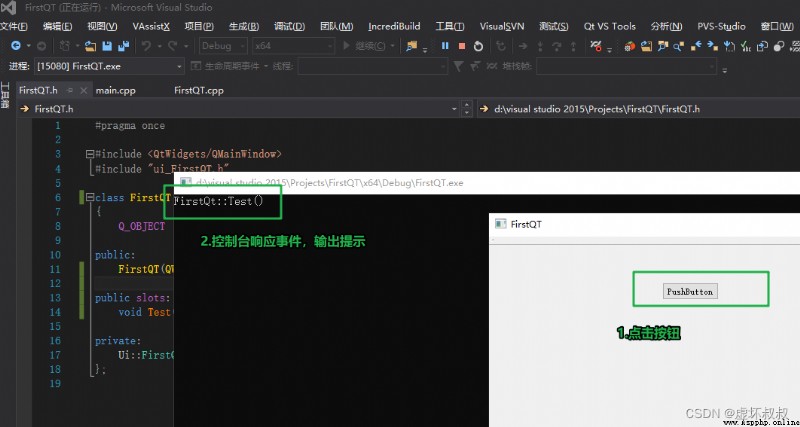
cout << "FirstQt::Test()" << endl;
}
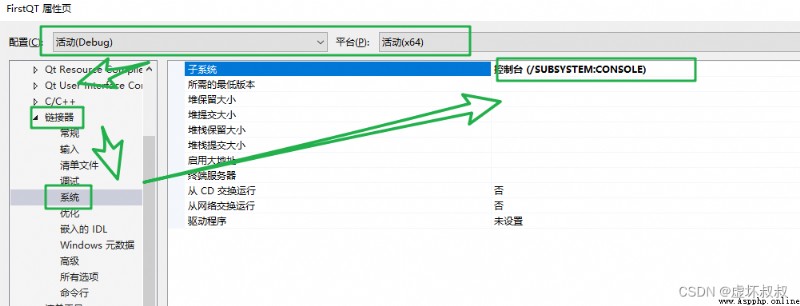
Modify the console output to facilitate demonstration :
function :
Follow the card below to get more programming knowledge immediately , Including various language learning materials , Thousands of sets PPT Templates and various game source materials and so on . More information can be viewed by yourself !