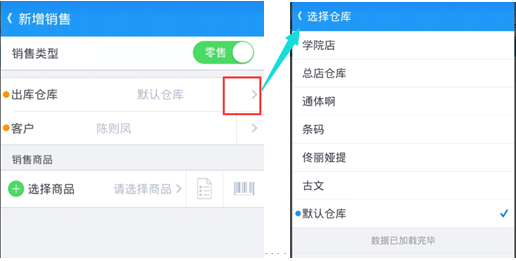
我們要實現上圖中的效果,需要如下的操作:
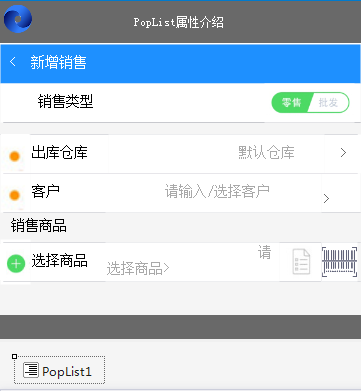
PopList控件顯示包括兩種模式:展開模式和篩選分類模式;兩種模式只能選其中一種
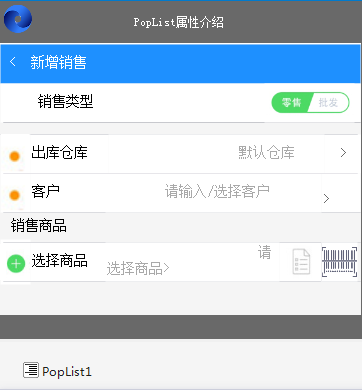
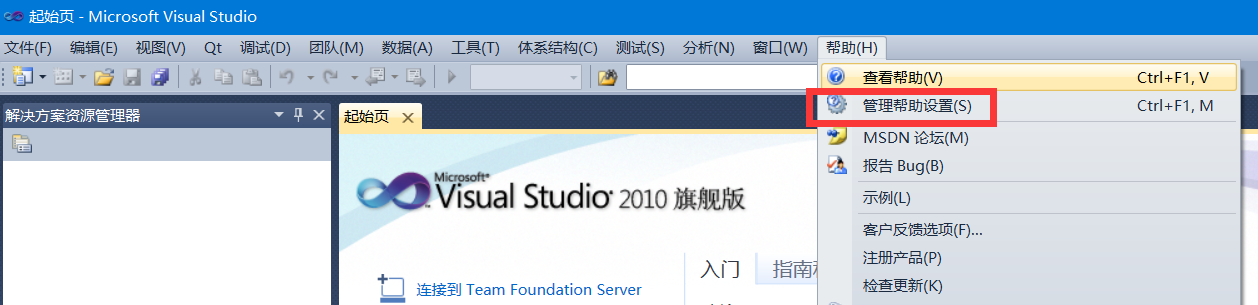
打開集合編輯器,並點擊“添加”,如圖1
其中包括indexerKey(分類篩選類型)、Text(菜單組文本)和Value(內部值,不在界面上顯示),如圖2
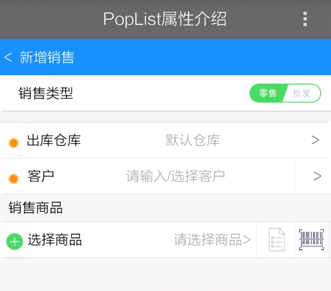
在Items中添加數據,如圖3
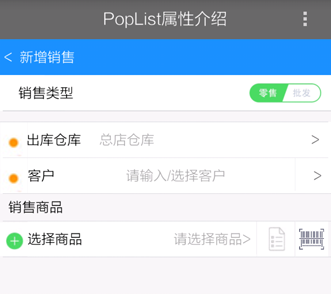
PopList控件的手機顯示效果如圖4
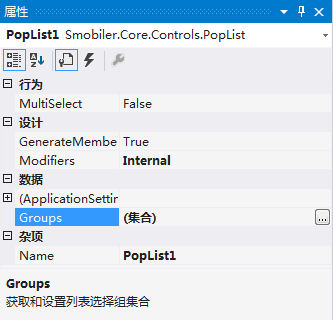
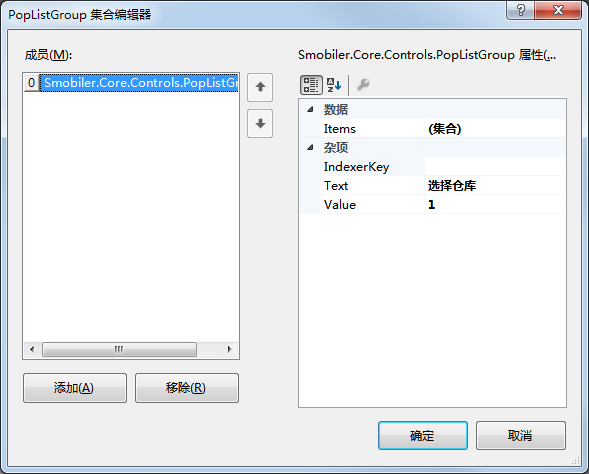
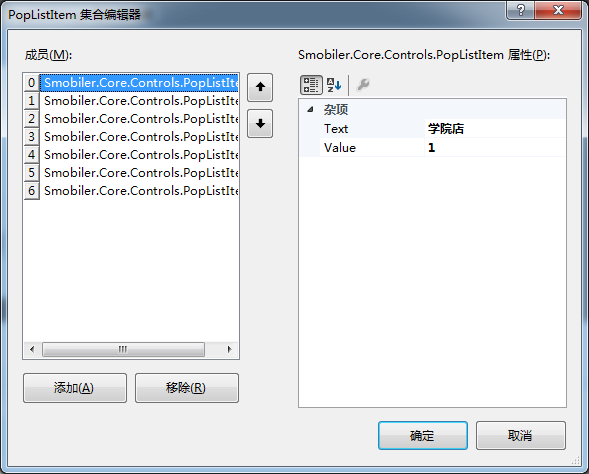
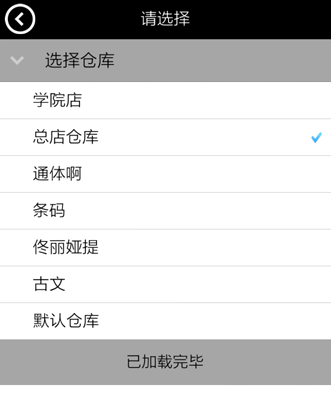 圖1
圖2
圖3
圖4
圖1
圖2
圖3
圖4
indexerKey(分類篩選類型)、Text(菜單組文本)和Value(內部值,不在界面上顯示)的設置見圖5
在Items中添加數據,如圖6
PopList控件的手機顯示效果如圖7
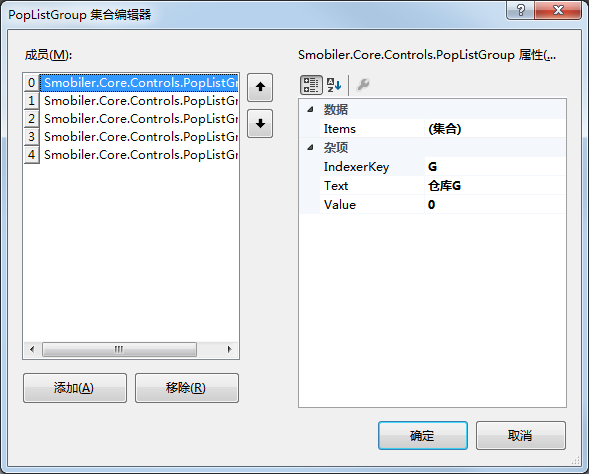
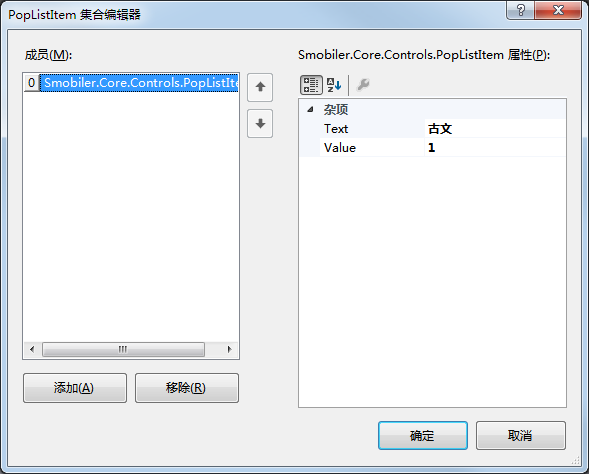
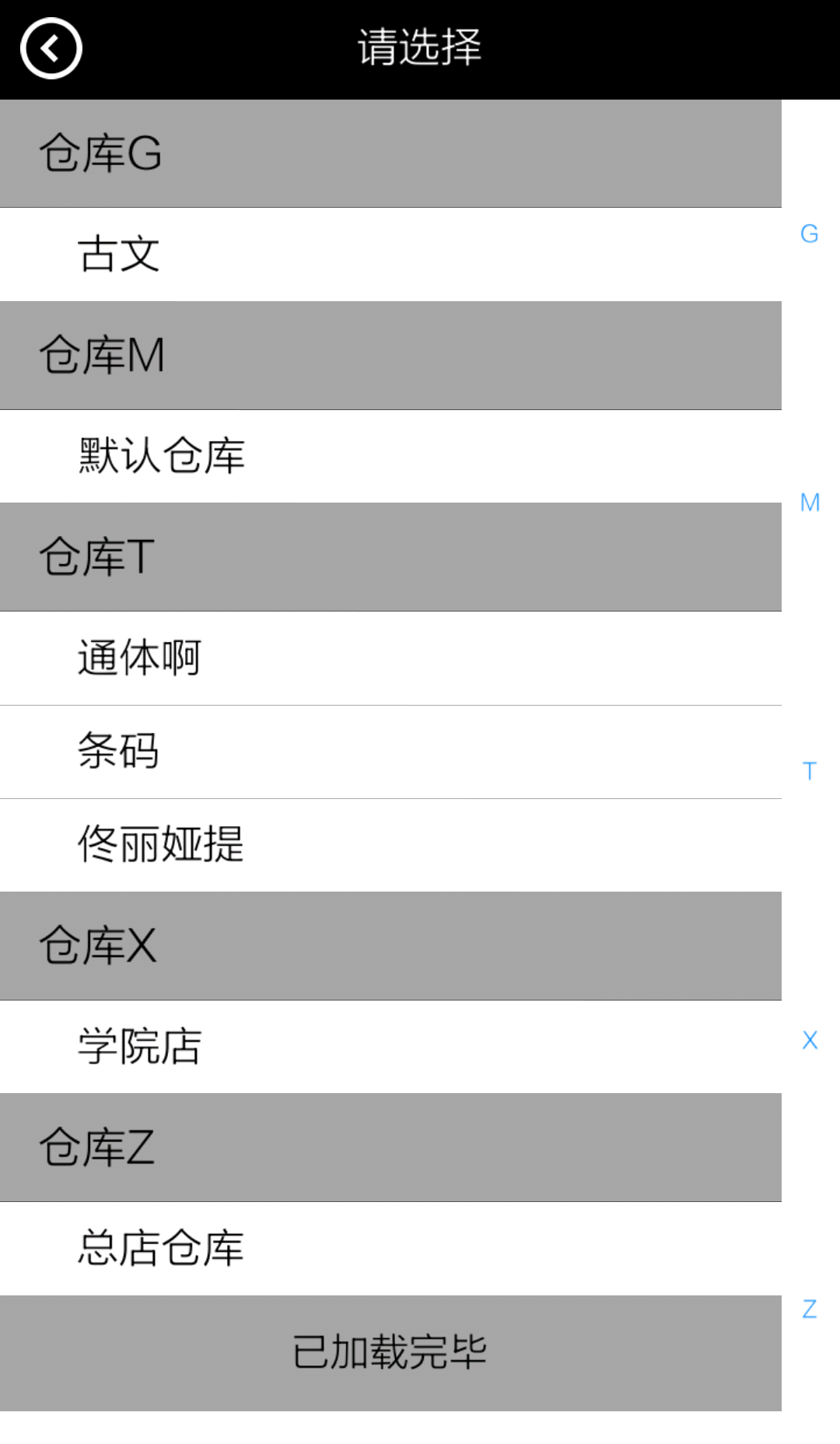 圖5
圖6
圖7
圖5
圖6
圖7
默認設置不允許多選
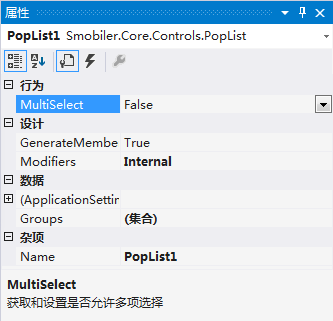
設置默認選項,需要在代碼中實現
VB:
    Private Sub Button1_Click(senderAs Object, e As EventArgs)Handles Button1.Click
        Me.PopList1.Show()
        If Label8.Text.Trim().Length <= 0 Then
            Me.PopList1.SetSelections(Me.PopList1.Groups(0).Items(6))
        End If
    End Sub
C#:
    private void Button1_Click(object sender, EventArgs e)
    {
        PopList1.Show();
        If (Label8.Text.Trim().Length <= 0)
        {
            PopList1.SetSelections(PopList1.Groups[0].Items[0]);
        }
    }
在內容選擇完成後的事件
事件代碼:
VB:
    Private Sub PopList1_Selected(senderAs Object, e As EventArgs)Handles PopList1.Selected
        Me.Label8.Text  = PopList1.Selection.Text
    End Sub
C#:
    private void PopList1_Selected(object sender, EventArgs e)
    {
        this.Label8.Text = PopList1.Selection.Text;
    }