這兩天看到同事的一個小工具,用的是模塊式開發,也就是俗稱的插件開發,用的是反射+接口的方式實現的。感覺挺好的,也就學習了一下,寫個小Demo,在此記錄下。
一、寫接口類
接口類是所有模塊的基礎,因為讓主程序去尋找模塊,就是通過反射來找到繼承此接口的相關項目,也就是後期包含繼承此接口類的DLL文件。
此接口類包含以下幾個屬性
工具的名稱(必需)、是否要彈出、前景色、背景色、工具啟動方法(必需)
public interface IToolsInterface
    {
        /// <summary>
        /// 獲取工具名稱
        /// </summary>
        string ToolName
        {
            get;
        }
        /// <summary>
        /// 是否彈出
        /// </summary>
        bool IsPopUp
        {
            get;
        }
        /// <summary>
        /// 前景色
        /// </summary>
        Brush ForgroundBrush
        {
            get;
        }
        /// <summary>
        /// 背景色
        /// </summary>
        Brush BackgroundBrush
        {
            get;
        }
        /// <summary>
        /// 工具啟動方法
        /// </summary>
        /// <returns></returns>
        FrameworkElement RunToolApplication();
    }
二、寫主窗體
所謂的主窗體,也就是各個模塊的承載器而已,因為各個模塊都是UserControl,需要窗體來承載。
需要的方法大概有兩個,尋找目錄的層級、創建相應的模塊。
1、尋找目錄層級
因為模塊最終要生成到一個位置,然後讓主程序去搜索,所以,需要一個搜索方法,去尋找
        /// <summary>
        /// 查找指定目錄下的所有末級子目錄
        /// </summary>
        /// <param name="dir">要查找的目錄</param>
        /// <param name="dirList">查找結果列表</param>
        /// <param name="system">是否包含系統目錄</param>
        /// <param name="hidden">是否包含隱藏目錄</param>
        public static void GetEndDirectories(DirectoryInfo dir,List<DirectoryInfo> dirList,bool system=false,bool hidden=false)
        {
            try
            {
                //返回當前目錄的子目錄集合
                DirectoryInfo[] dirSub = dir.GetDirectories();
                if(dirSub.Length==0)
                {
                    //如果沒有子目錄了則添加進列表
                    dirList.Add(dir);
                    return;
                }
                foreach (DirectoryInfo subItem in dirSub)
                {
                    //跳過系統目錄
                    if (!system && (subItem.Attributes & FileAttributes.System)==FileAttributes.System)
                    {
                        continue;
                    }
                    //跳過隱藏目錄
                    if (!hidden && (subItem.Attributes & FileAttributes.Hidden)==FileAttributes.Hidden)
                    {
                        continue;
                    }
                    //遞歸
                    GetEndDirectories(subItem, dirList);
                }
            }
            catch (Exception ex)
            {
                MessageBox.Show("獲取目錄層級失敗。" + ex.Message);
            }
        }
2、創建相應模塊
當存在一個DLL時,就生成一個模塊,兩個DLL時就要有兩個模塊,以此類推……
     /// <summary>
        /// 創建功能按鈕
        /// </summary>
        /// <param name="toolsInterface"></param>
        /// <returns></returns>
        private UIElement CreateFunction(IToolsInterface toolsInterface)
        {
            Button btn = new Button();
            btn.Click += Btn_Click;
            btn.Content = toolsInterface.ToolName;
            btn.Width = 100;
            btn.Height = 50;
            btn.Margin = new Thickness(5, 0, 0, 0);
            btn.Background = toolsInterface.BackgroundBrush;
            btn.Foreground = toolsInterface.ForgroundBrush;
            btn.Tag = toolsInterface;
            return btn;
        }

        private void Btn_Click(object sender, RoutedEventArgs e)
        {
            Button btn = sender as Button;
            if(btn!=null)
            {
                IToolsInterface toolsInterface = btn.Tag as IToolsInterface;
                if(toolsInterface !=null)
                {
                    FrameworkElement control = toolsInterface.RunToolApplication();

                    gUc.Children.Clear();
                    gUc.Children.Add(control);
                }
                else
                {
                    MessageBox.Show("實例化接口失敗");
                }
            }
            else
            {
                MessageBox.Show("實例化按鈕失敗");
            }
        }
3、加載模塊
     private void LoadWidgets()
        {
            string applicationPath = AppDomain.CurrentDomain.SetupInformation.ApplicationBase;
            string dirPath = applicationPath + "Widgets/";
            if(!Directory.Exists(dirPath))
            {
                MessageBox.Show("未找到相關的Widgets文件夾信息,請確認相關的文件夾是否存在。");
                return;
            }
            DirectoryInfo dir = new DirectoryInfo(dirPath);
            List<DirectoryInfo> lastDirNameList = new List<DirectoryInfo>();
            Tools.FileToolsHelper.GetEndDirectories(dir, lastDirNameList);
            foreach (DirectoryInfo item in lastDirNameList)
            {
                WrapPanel wrapPanel = null;
                TabItem tabItem = Tools.UCToolsHelper.CreateTabByDirName(item.Name,tcToolkClass);
                wrapPanel = Tools.UCToolsHelper.CreateWrapPanel(tabItem);
                string[] dllFilesPath = Directory.GetFiles(item.FullName, "*.dll");
                foreach (string dllPath in dllFilesPath)
                {
                    Assembly assembly = Assembly.LoadFile(dllPath);
                    Type[] types = assembly.GetExportedTypes();
                    foreach (Type type in types)
                    {
                        if(typeof(IToolsInterface).IsAssignableFrom(type)&&!type.IsAbstract)
                        {
                            IToolsInterface toolInterface = Activator.CreateInstance(type) as IToolsInterface;
                            if (toolInterface !=null)
                            {
                                wrapPanel.Children.Add(CreateFunction(toolInterface));
                            }
                        }
                    }
                }
            }
        }
三、寫相應的模塊部分
最近也沒寫什麼小東西,就把原來做的兩個Winform東西,直接搬過來,弄成了WPF的,把窗體改成了UserControl,額外加了一個類,用來實現第一部分提到的接口。
其中一個小工具在這:http://www.cnblogs.com/ZXdeveloper/p/5682230.html
基本東西不動,只是加了一個FunctionHelper用來實現接口,此處需要注意,一定是Public,否則查詢不到
public class FunctionHelper : IToolsInterface
    {
        public Brush BackgroundBrush
        {
            get
            {
                return new SolidColorBrush(Colors.LightBlue);
            }
        }

        public Brush ForgroundBrush
        {
            get
            {
                return new SolidColorBrush(Colors.YellowGreen);
            }
        }

        public bool IsPopUp
        {
            get
            {
                return false;
            }
        }

        public string ToolName
        {
            get
            {
                return "方法查詢工具";
            }
        }

        public FrameworkElement RunToolApplication()
        {
            return new SearchUC();
        }
    }
四、看一下效果圖
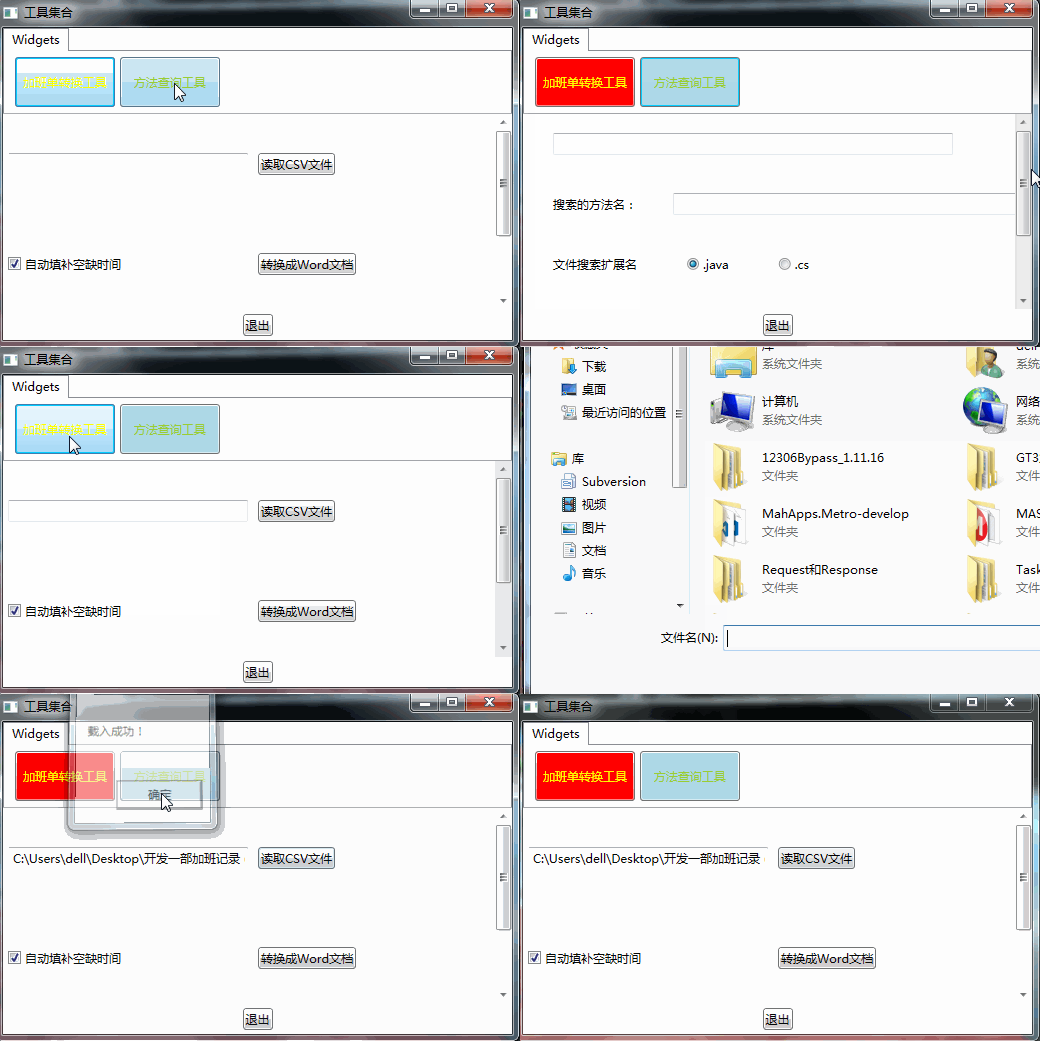
大概也就這麼一個流程,不是很難,方便了後期的開發。
DEMO還有很多不完善的地方,我會慢慢弄,後期會不斷的完善
DEMO