首先我們需要安裝Windows 8以及VS2012,下載地址:http://msdn.microsoft.com/zh- CN/windows/apps/br229516/
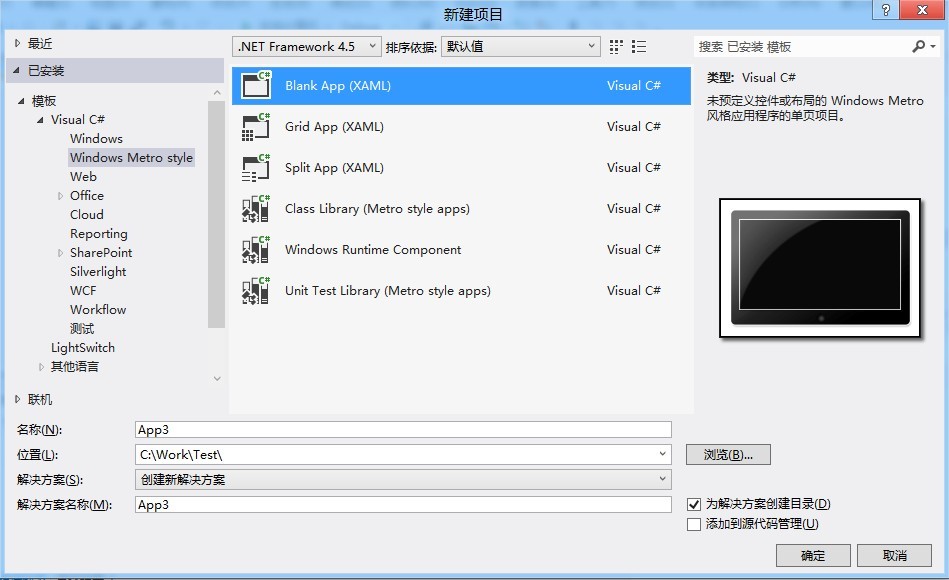
然後我們打開VS2012,選擇Windows Metro Style,然後選擇創建Blank App項目如下圖:
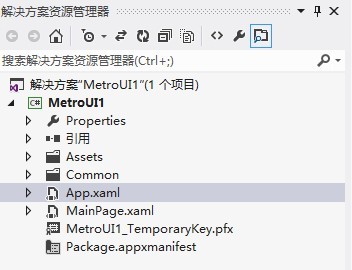
其新建完成的項目結構如下:
我 們拖動一個按鈕和ListBox到界面中,設置按鈕事件以及ListBox的DataTemplate,如下Xaml代碼:
<Grid Background="{StaticResource ApplicationPageBackgroundThemeBrush}">
        <Button Content="Button" Name="button1" HorizontalAlignment="Left"
                Margin="135,124,0,0" VerticalAlignment="Top" Click="button1_Click"/>
        <ListBox HorizontalAlignment="Left" Name="listbox1" Height="100"
                 Margin="135,187,0,0" VerticalAlignment="Top" Width="140">
            <ListBox.ItemTemplate>
                <DataTemplate>
                    <TextBlock  Width="60" Text="{Binding ItemName}"/>


                </DataTemplate>
            </ListBox.ItemTemplate>
        </ListBox>
    </Grid>
其Xaml.cs文件如下:
/// <summary>
    /// An empty page that can be used on its own or navigated to within a Frame.
    /// </summary>
    public sealed partial class MainPage : Page
    {
        public MainPage()
        {
            this.InitializeComponent();
            listbox1.ItemsSource = ItemModel.GetItem();
            button1.Content = "Windows 8按鈕";
        }

        /// <summary>
        /// Invoked when this page is about to be displayed in a Frame.
        /// </summary>
        /// <param name="e">Event data that describes how this page was reached.  The

Parameter
        /// property is typically used to configure the page.</param>
        protected override void OnNavigatedTo(NavigationEventArgs e)
        {
        }

        private void button1_Click(object sender, RoutedEventArgs e)
        {
            this.button1.Content = this.button1.Content + "1";
        }
    }
ListBox綁定的數據源代碼如下:
ListBox綁定的數據源代碼如下:
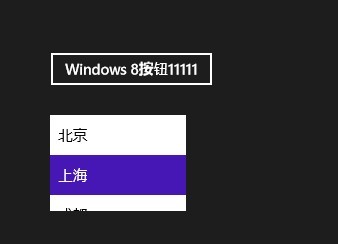
運行效 果圖如下: